20 July 2026
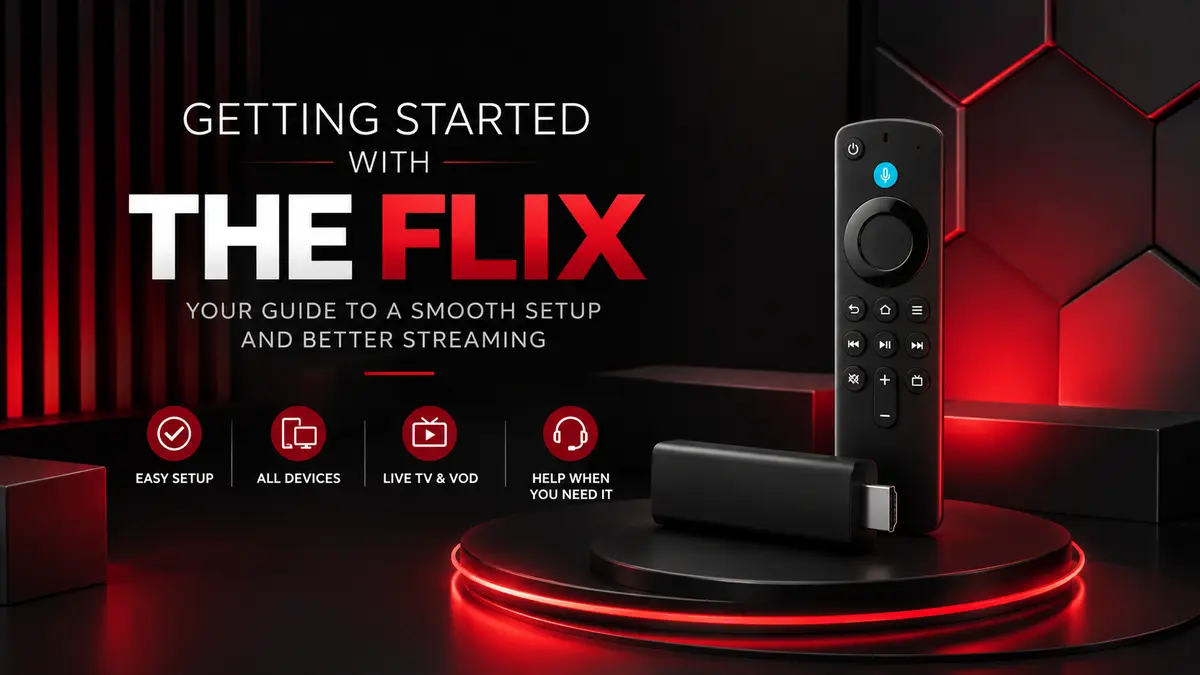
Getting The FlixIPTV set up is straightforward once you know what you need and how the different parts work together.
The basic process is simple. Prepare your device, install a compatible IPTV player, enter your setup details, allow the content to load, and test playback.
The exact steps can vary depending on whether you use a Firestick, Smart TV, Android TV, mobile device, PC, or Mac.
This guide walks you through the complete setup process and shows you what to check if something does not work as expected.
How Do You Get Started with The FlixIPTV?
To get started with The FlixIPTV, connect a compatible device to a stable internet connection, install a suitable IPTV player, and enter the setup details provided to you.
Once the content has loaded, test live TV, the programme guide, audio, and on-demand content where available.
If everything loads and plays correctly, your initial setup is complete.
What You Need Before Setting Up The FlixIPTV
A little preparation can save you from troubleshooting problems later.
Before starting, make sure you have a compatible device, a reliable internet connection, your setup details, and a suitable IPTV player.
A Compatible Device
The FlixIPTV can be used with a range of popular streaming devices and platforms, including:
Amazon Firestick and Fire TV
Smart TVs
Android TV and Google TV
Android phones and tablets
iPhone and iPad
Windows PCs
Macs
Compatible set-top boxes
The setup process is not identical across every device.
A Firestick, for example, may use a different installation method from a Samsung or LG Smart TV. It helps to know the exact device and operating system you are using before installing a player.
A Stable Internet Connection
Streaming depends on a consistent internet connection, not simply the maximum speed shown by a speed test.
If you use Wi-Fi, make sure your streaming device receives a strong signal. Moving closer to the router can help if the connection is weak.
Ethernet is another option for compatible devices and can provide a more consistent connection.
If you experience playback problems later, check your internet connection before changing your account or player settings. A weak or unstable connection can easily look like an app problem.
Your Setup Details
Keep the setup information provided to you ready before opening your IPTV player.
Depending on the setup method, this could include:
Username and password
Server or portal information
Playlist details
Device-specific setup instructions
Enter this information exactly as provided.
A missing character, incorrect URL, accidental space, or typing error can prevent a valid account from loading.
You should also keep your setup details private. Do not post them publicly or share them with anyone who does not need access.
A Compatible IPTV Player
One point often causes confusion for first-time users: the IPTV service and IPTV player are not necessarily the same thing.
The service provides access to the content. The IPTV player is the app or software you use to load, organise, and watch it.
Think of the player as the interface between your device and the service.
Different devices support different players, so the right option depends on your device, operating system, and setup method.
How to Set Up The FlixIPTV Step by Step
The menus and wording may differ between IPTV players, but the general setup process remains similar.
Let's break it down.
Step 1: Prepare Your Streaming Device
Start with the basics.
Connect your device to the internet and make sure its operating system is up to date. If the device has been running for a long time, restart it before beginning.
Check that you also have enough free storage to install and run your chosen IPTV player.
Before continuing, make sure you have:
A working internet connection
Access to your streaming device
Enough free storage
Your setup details
Any device-specific instructions you received
Getting these basics right makes everything that follows easier.
Step 2: Install a Compatible IPTV Player
Install a player that works with your device and the setup method you have been given.
On some devices, you can download a compatible player directly from the official app store. Other devices may require a different installation process.
Once installed, open the player.
Most IPTV players will ask you to add an account, playlist, profile, portal, or similar connection.
The wording varies between apps, but the purpose is the same. You are connecting the player to your service.
Step 3: Enter Your Setup Details
Use the information provided to configure your IPTV player.
The process will usually look something like this:
Open the IPTV player.
Select the appropriate login or playlist option.
Enter the supplied information.
Give the profile a recognisable name if required.
Check the information carefully.
Save the configuration.
Allow the player to connect and load.
Accuracy matters here.
If you copy and paste the information, check that you have not included an unwanted space before or after a username, password, or URL.
If you enter the details manually, double-check similar-looking characters.
If the first attempt fails, do not start changing unrelated settings. Check the information you entered first.
Step 4: Let the Content and EPG Load
Once the player accepts your details, it may need some time to load and organise the available content.
You may also see the EPG begin to populate.
EPG stands for Electronic Programme Guide. It is the on-screen TV guide that displays programme names, schedules, and other channel information where supported.
Loading time can vary depending on the player, device, and internet connection.
Give the app enough time to finish loading before assuming there is a problem.
Step 5: Test Playback
Seeing channels or categories on the screen does not necessarily mean the setup is complete.
Open a few streams and test them.
Try content from different categories rather than checking only one stream. If on-demand content is available, test that as well.
Check:
Live playback
Picture quality
Audio
Channel switching
EPG information
Full-screen playback
On-demand playback where available
If these features work correctly, your configuration is likely complete.
Step 6: Save Your Working Configuration
Once everything works, avoid changing important connection settings without a reason.
Some setup problems happen because users continue changing login methods, URLs, server information, or player settings after the service is already working.
If your configuration works, save it.
You can customise favourites, categories, and interface preferences later without changing the core connection details.
How to Set Up The FlixIPTV on Different Devices
The basic setup principle stays the same across most devices, but the installation method can differ.
The FlixIPTV Setup on Amazon Firestick and Fire TV
Connect your Firestick or Fire TV to the internet and install a compatible IPTV player.
Open the player, enter the setup information provided to you, and allow the content to load.
Then test several streams to make sure playback works correctly.
Firestick users should also keep an eye on available storage. Limited free space and too many background apps can affect the overall performance of the device.
For device-specific instructions, read our How to Watch IPTV on Firestick guide.
The FlixIPTV Setup on a Smart TV
Smart TV setup depends on the television's operating system.
Samsung and LG TVs, for example, do not always support the same apps as Android TV or Google TV.
Start by opening your TV's app store and checking whether your chosen compatible IPTV player is available.
Install the player, open it, and follow its setup process using the details provided to you.
If a particular player is unavailable on your television, that does not automatically mean your TV is incompatible. You may simply need to use another compatible app.
For more help choosing a player, read our Best IPTV Apps for Smart TVs guide.
The FlixIPTV Setup on Android TV and Google TV
Android TV and Google TV devices usually allow you to install compatible players through their app store.
Once you have installed the player:
Open the app.
Select the correct login method.
Enter your setup details.
Save the configuration.
Wait for the content to load.
Test playback.
If the app does not behave as expected, restarting both the player and device is a sensible first step.
The FlixIPTV Setup on Android Phones and Tablets
Install a compatible IPTV player on your Android phone or tablet and enter your supplied setup details.
The interface may look different from a television, but the basic setup process is similar.
Test playback over Wi-Fi first.
If you later stream using mobile data, remember that video streaming can use a significant amount of your data allowance.
The FlixIPTV Setup on iPhone and iPad
Find a compatible IPTV player for iOS or iPadOS and install it on your device.
Open the app, select the appropriate setup method, and enter the information provided to you.
Allow the content and programme information to load before testing playback.
If the app does not match the setup instructions you received, confirm that you are using the correct player and login method before changing your account details.
The FlixIPTV Setup on Windows and Mac
Windows and Mac users need compatible software that supports the setup method provided to them.
Install the appropriate player, add your details, and wait for the content to load.
Then test both video and audio playback.
If your setup works on another device but not your computer, the issue may be related to the player, network, configuration, or device rather than your account.
How to Know If The FlixIPTV Is Set Up Correctly
A successful setup should be easy to recognise.
Check that:
Your IPTV player accepts the setup details.
Content categories load correctly.
Live streams open.
Channels can be changed normally.
Video and audio both work.
The EPG appears where supported.
On-demand content loads where available.
Playback remains stable.
If all of these work, your initial setup is complete.
If one feature fails while everything else works, troubleshoot that specific feature rather than starting the entire setup again.
What to Do After Your First Successful Setup
Once everything is working, spend a few minutes configuring the player around how you actually watch content.
Organise Your Favourites
Most IPTV players allow you to save frequently watched content as favourites.
Using favourites can save you from searching through large category lists every time you open the app.
The exact method varies between players, but you will usually find the option in the channel or content menu.
Learn Your Player's Main Controls
You do not need to understand every setting.
Focus on the features you will actually use:
Search
Categories
Favourites
EPG
Playback controls
Refresh or reload
Audio options
Subtitle options
Once you know these controls, navigating the player becomes much easier.
Keep Your Player Updated
App updates can include bug fixes, compatibility improvements, and performance changes.
If you installed your player from an official app store, updates may happen automatically.
It is still worth checking for updates if an app that previously worked correctly starts behaving differently.
Keep Your Setup Details Secure
Treat your login and setup information as private account details.
Do not post screenshots containing usernames, passwords, server details, or other credentials on social media, forums, or public support groups.
If you need to send a screenshot when asking for help, hide sensitive information first.
Avoid Changing Working Settings
Here's the thing: more configuration does not automatically mean better performance.
Once everything works properly, there is usually no reason to keep changing connection settings.
Customise the interface if you want, but leave working account and server information alone unless there is a specific reason to change it.
Common FlixIPTV Setup Problems and How to Fix Them
Most first-time setup problems fall into a few common categories.
Start with the simplest possible cause before reinstalling apps or changing multiple settings.
My Login or Setup Details Aren't Working
Check the information you entered for:
Typing mistakes
Extra spaces
Incorrect capitalisation
Missing characters
Incorrect server or portal information
The wrong login method
If everything matches the information you received and the login is still rejected, contact support rather than repeatedly changing settings.
The IPTV Player Is Stuck Loading
Close the player completely and reopen it.
If that does not work, restart your device and check your internet connection.
Still stuck? Confirm that your setup details are correct and try refreshing the content from within the player.
Avoid reinstalling everything until you have ruled out these simpler causes.
Content Loads but Won't Play
If categories and content appear but streams do not open, the player may already be connecting correctly.
Test several streams rather than relying on one.
Then restart the player, check your internet connection, and make sure the app is up to date.
If nothing plays consistently, further troubleshooting may be needed.
Streams Keep Buffering
Buffering does not always mean there is a problem with your account.
Wi-Fi signal strength, internet stability, network congestion, device performance, and stream quality can all affect playback.
Start by checking your connection.
If you use Wi-Fi, try moving the device closer to your router. Restarting the router and streaming device can also help.
For a deeper look at connection requirements and picture quality, read HD vs 4K Streaming: What You Need.
The EPG Isn't Showing
Give the programme guide enough time to load first.
If it remains empty, look for an EPG refresh or update option within your IPTV player.
Restarting the player may also help.
If live content works but the EPG does not, the issue is likely limited to the programme guide rather than the entire setup.
Some Categories Aren't Visible
Check whether your player has filters, hidden groups, favourites-only views, or parental controls enabled.
Refresh the content after checking these settings.
If a category is still missing, confirm whether it should be available before changing the player configuration.
Video Works but There Is No Sound
Start with the simple checks.
Make sure your TV and streaming device are not muted. Check the player's volume and audio-track options as well.
Try another stream.
If there is no sound anywhere, restart the player and device, then check your device's audio-output settings.
The FlixIPTV Works on One Device but Not Another
If everything works on one device, that is useful information.
Compare the two devices.
Check whether they use the same internet connection, player, login method, and app version.
If one device works correctly, the issue on the second device may be related to its app, configuration, network, or operating system.
Wi-Fi vs Ethernet: Which Is Better for Streaming?
Both can work, but Ethernet generally provides a more consistent connection when your device supports it.
Strong Wi-Fi can also work well, particularly when the streaming device is close to the router.
Ethernet is less affected by distance, walls, wireless interference, and other devices competing for the same Wi-Fi connection.
That does not mean you need Ethernet.
If your Wi-Fi connection is strong and playback is stable, there is little reason to change it. If you regularly experience buffering or connection drops, Ethernet is worth testing.
Can You Change IPTV Players Later?
Yes. You can generally change to another compatible IPTV player if your device and setup method support it.
Remember that the IPTV player and underlying service are separate parts of the setup.
Changing the player does not necessarily mean changing the service. You are simply using a different compatible app to access it.
You might switch because another player has an interface you prefer, better EPG controls, easier favourites management, or performs better on your device.
Before switching, make sure the new player supports your setup method.
When Should You Contact The FlixIPTV Support?
Basic device and app problems are worth checking yourself first.
Restart the app, check your internet connection, confirm your setup information, update the player, and refresh the content.
Contact The FlixIPTV support if:
Your supplied login details are repeatedly rejected.
Your account information appears incorrect.
The setup instructions do not match your device.
Authentication continues to fail after checking your details.
A service-related problem continues after basic troubleshooting.
When asking for help, include your device, the IPTV player you are using, what you were trying to do, and what happened.
If you see an error message, include the exact wording.
Specific information makes troubleshooting much quicker than simply saying the app does not work.
Frequently Asked Questions
How do I set up The FlixIPTV for the first time?
Install a compatible IPTV player, enter your supplied setup details, allow the content to load, and test playback. The exact installation process depends on your device.
What do I need to use The FlixIPTV?
You need a compatible device, a stable internet connection, a suitable IPTV player, and valid setup details.
Which devices can I use with The FlixIPTV?
The FlixIPTV can be set up on compatible Firestick, Smart TV, Android TV, Google TV, mobile, Windows, Mac, and supported set-top box devices.
Do I need an IPTV player?
Yes. You will generally need a compatible player to load and watch the service. The right player depends on your device and setup method.
How do I enter my setup details?
Open your IPTV player, choose the appropriate login or playlist method, and enter the information exactly as provided. Save it and allow the content to load.
Why isn't my IPTV player loading?
Check your internet connection and setup details first. Restart the player and device, then refresh the content if necessary.
How do I refresh the EPG?
Look for an EPG refresh or update option in your IPTV player. The exact location varies between apps.
Can I change IPTV players?
Yes, provided the new player is compatible with your device and supports your setup method.
Do I need Ethernet to use The FlixIPTV?
No. Strong Wi-Fi can work well. Ethernet may provide a more consistent connection on compatible devices.
Why does The FlixIPTV work on one device but not another?
The problem may be specific to the second device, app, network, or configuration. Compare the player, connection, setup method, and app version on both devices.
What should I do if setup fails?
Check your connection and setup details, restart the player and device, and try again. If your supplied details are still rejected, contact The FlixIPTV support.
Final The FlixIPTV Setup Checklist
Before you finish, make sure:
Your device has a stable internet connection.
A compatible IPTV player is installed.
Your setup details are entered correctly.
Content and categories have loaded.
Live playback works.
Audio works correctly.
The EPG has loaded where supported.
On-demand playback works where available.
Your working configuration is saved.
Your account details are stored securely.
Once these checks are complete, your initial The FlixIPTV setup is done.
From here, keep things simple. Save your favourites, learn the controls you actually use, keep your player updated, and avoid changing a configuration that already works.
If something stops working later, troubleshoot the specific problem first. You will usually find the cause much faster than starting the entire setup again.